arrow-left

All pages
gitbookPowered by GitBook
1 of 1

Loading...

Amazon MSK (Kafka)

How to Connect Pinot with Amazon Managed Streaming for Apache Kafka (Amazon MSK)

This wiki documents how to connect Pinot deployed in Amazon EKSarrow-up-right to Amazon Managed Kafkaarrow-up-right.

hashtag
Prerequisite

Follow this AWS Quickstart Wikiarrow-up-right to run Pinot on Amazon EKS.

hashtag
Create an Amazon MSK Cluster

  1. Go to to create a Kafka Cluster.

circle-info

Note:

  • For demo simplicity, this MSK cluster reuses same VPC created by EKS cluster in the previous step. Otherwise a is required to ensure two VPCs could talk to each other.

  1. Click Create. b

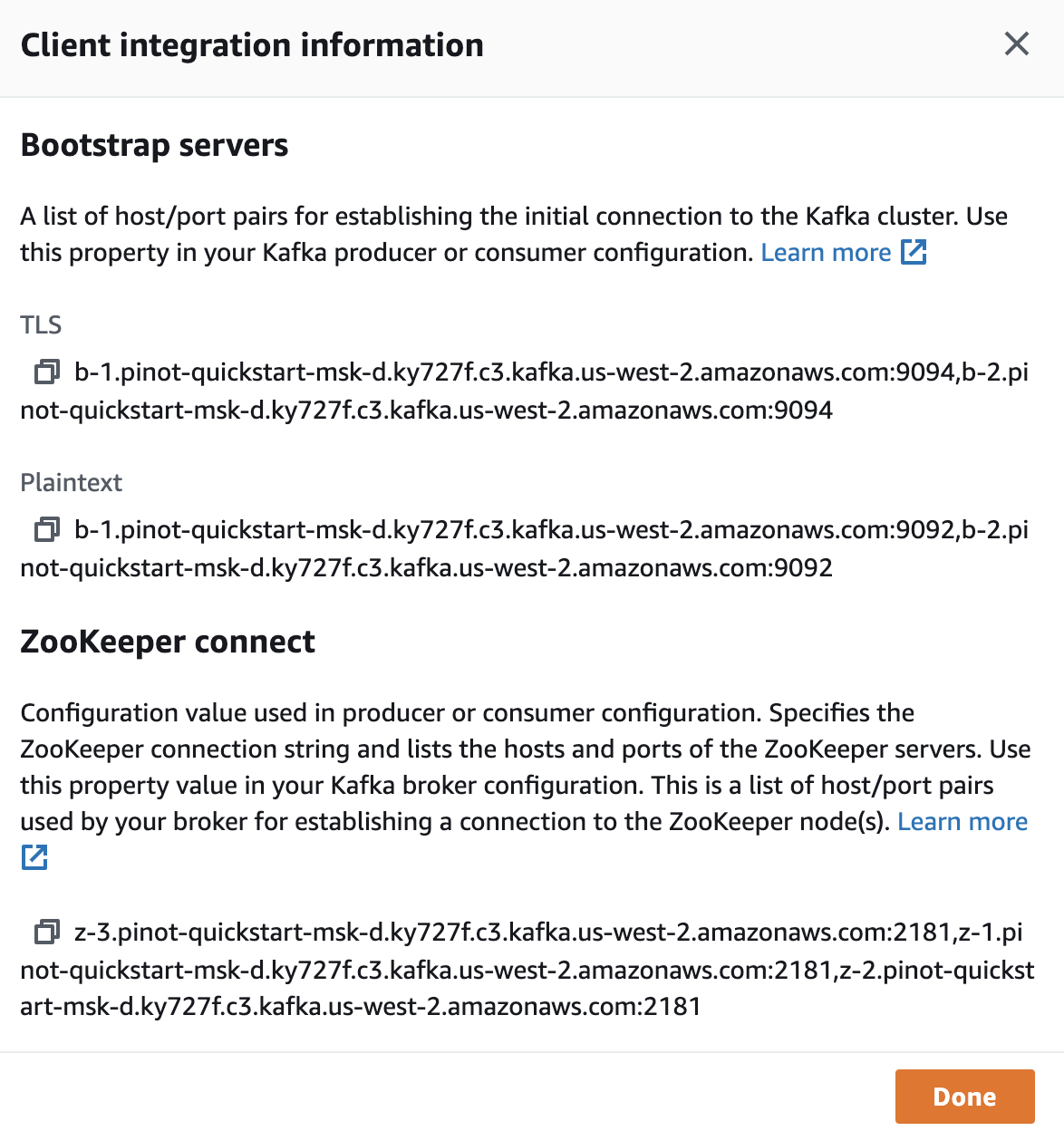
  2. Once the cluster is created, click View client information to see the Zookeeper and Kafka Broker list.

Sample Client Information

hashtag
Connect to MSK

hashtag
Config SecurityGroup

Until now, the MSK cluster is still not accessible, you can follow this to create an EC2 instance to connect to it for topic creation, run console producer and consumer.

In order to connect MSK to EKS, we need to allow the traffic could go through each other.

This is configured through Amazon VPC Page.

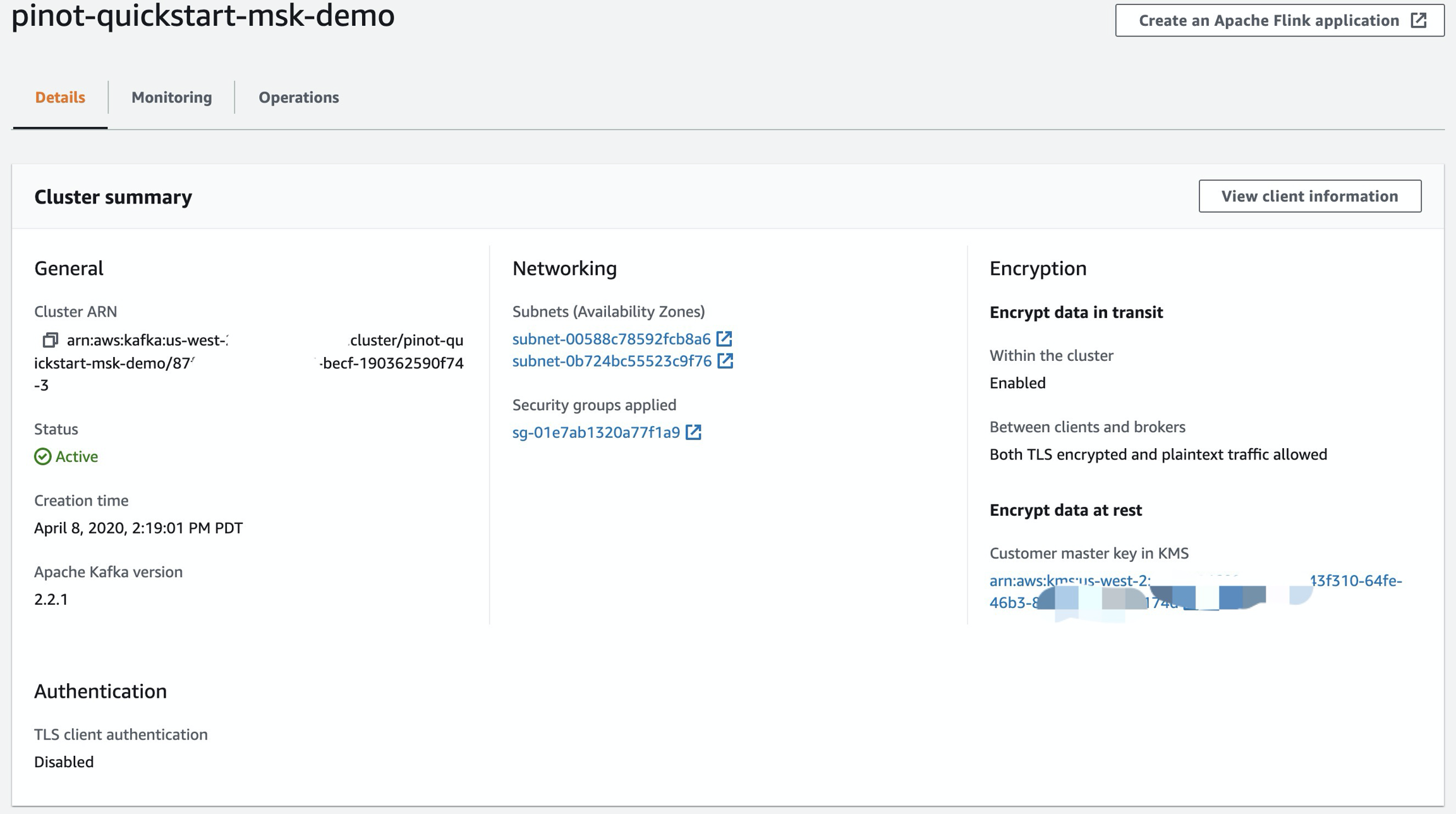
  1. Record the Amazon MSK SecurityGroup from the Cluster page, in the above demo, it's sg-01e7ab1320a77f1a9.

  2. Open , click on SecurityGroups on left bar. Find the EKS Security group: eksctl-${PINOT_EKS_CLUSTER}-cluster/ClusterSharedNodeSecurityGroup.

circle-info

Ensure you are picking ClusterShardNodeSecurityGroup

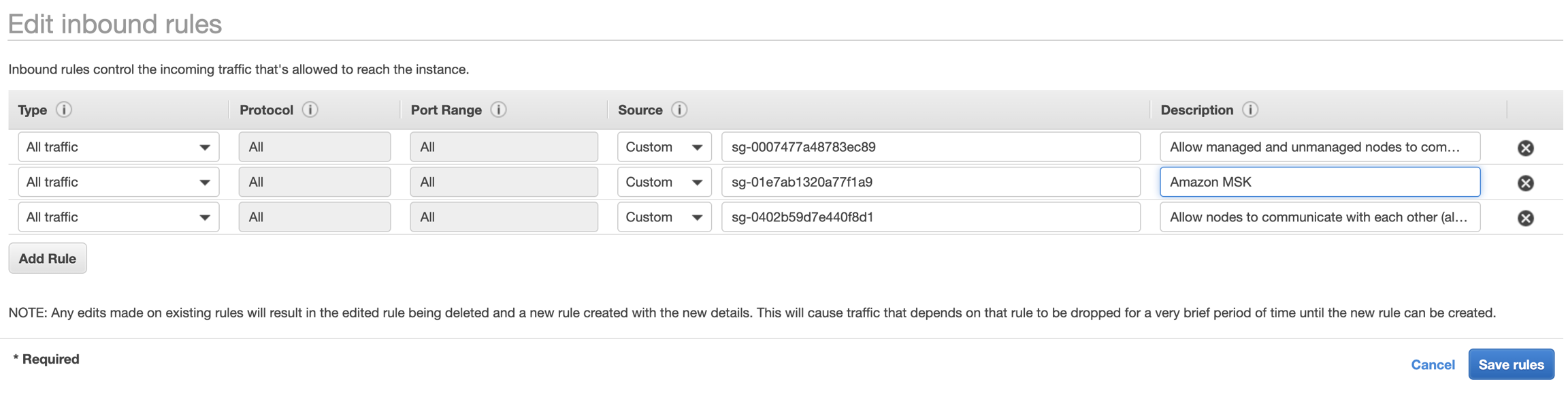
  1. In SecurityGroup, click on MSK SecurityGroup (sg-01e7ab1320a77f1a9), then Click on Edit Rules , then add above ClusterSharedNodeSecurityGroup (sg-0402b59d7e440f8d1) to it.

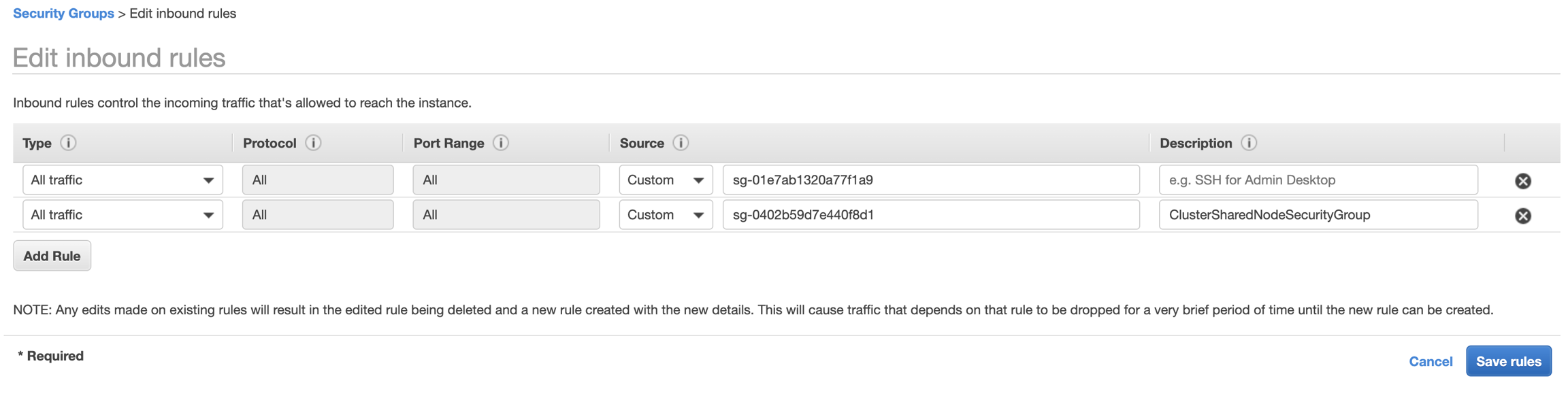
  1. Click EKS Security Group ClusterSharedNodeSecurityGroup (sg-0402b59d7e440f8d1), add In bound Rule for MSK Security Group (sg-01e7ab1320a77f1a9).

Now, EKS cluster should be able to talk to Amazon MSK.

hashtag
Create Kafka topic

To run below commands, ensure you set two environment variable with ZOOKEEPER_CONNECT_STRING and BROKER_LIST_STRING (Use plaintext) from Amazon MSK client information, and replace the Variables accordingly.

E.g.

You can log into one EKS node or container and run below command to create a topic.

E.g. Enter into Pinot controller container:

Then install wget then download Kafka binary.

Create a Kafka topic:

Topic creation succeeds with below message:

hashtag
Write sample data into Kafka

Once topic is created, we can start a simple application to produce to it.

You can download below yaml file, then replace:

  • ${ZOOKEEPER_CONNECT_STRING} -> MSK Zookeeper String

  • ${BROKER_LIST_STRING} -> MSK Plaintext Broker String in the deployment

  • ${GITHUB_PERSONAL_ACCESS_TOKEN}

And apply the YAML file by.

Once the pod is up, you can verify by running a console consumer to read from it.

circle-info

Try to run from the Pinot Controller container entered in above step.

hashtag
Create a Pinot table

This step is relatively easy.

Since we already put table creation request into the ConfigMap, we can just enter into pinot-github-events-data-into-msk-kafka pod to execute the command.

  • Check if the pod is running:

Sample output:

  • Enter into the pod

  • Create Table

Sample output:

  • Then you can open Pinot Query Console to browse the data

Under Encryption section, choose Both TLS encrypted and plaintext traffic allowed
-> A personal Github Personal Access Token generated from
, grant all read permissions to it. Here is the
to generate Github Events.
MSK Landing Pagearrow-up-right
VPC Peeringarrow-up-right
Wikiarrow-up-right
Amazon VPC Pagearrow-up-right
file-download
7KB
github-events-aws-msk-demo.yaml
arrow-up-right-from-squareOpen
github-events-aws-msk-demo.yaml
MSK Cluster View
Amazon EKS ClusterSharedNodeSecurityGroup
Add SecurityGroup to Amazon MSK
Add SecurityGroup to Amazon EKS
ZOOKEEPER_CONNECT_STRING="z-3.pinot-quickstart-msk-d.ky727f.c3.kafka.us-west-2.amazonaws.com:2181,z-1.pinot-quickstart-msk-d.ky727f.c3.kafka.us-west-2.amazonaws.com:2181,z-2.pinot-quickstart-msk-d.ky727f.c3.kafka.us-west-2.amazonaws.com:2181"
BROKER_LIST_STRING="b-1.pinot-quickstart-msk-d.ky727f.c3.kafka.us-west-2.amazonaws.com:9092,b-2.pinot-quickstart-msk-d.ky727f.c3.kafka.us-west-2.amazonaws.com:9092"
kubectl exec -it pod/pinot-controller-0  -n pinot-quickstart bash
apt-get update
apt-get install wget -y
wget https://archive.apache.org/dist/kafka/2.2.1/kafka_2.12-2.2.1.tgz
tar -xzf kafka_2.12-2.2.1.tgz
cd kafka_2.12-2.2.1
bin/kafka-topics.sh \
  --zookeeper ${ZOOKEEPER_CONNECT_STRING} \
  --create \
  --topic pullRequestMergedEventsAwsMskDemo \
  --replication-factor 1 \
  --partitions 1
Created topic "pullRequestMergedEventsAwsMskDemo".
kubectl apply -f github-events-aws-msk-demo.yaml
bin/kafka-console-consumer.sh \
  --bootstrap-server ${BROKER_LIST_STRING} \
  --topic pullRequestMergedEventsAwsMskDemo
kubectl get pod -n pinot-quickstart  |grep pinot-github-events-data-into-msk-kafka
pinot-github-events-data-into-msk-kafka-68948fb4cd-rrzlf   1/1     Running     0          14m
podname=`kubectl get pod -n pinot-quickstart  |grep pinot-github-events-data-into-msk-kafka|awk '{print $1}'`
kubectl exec -it ${podname} -n pinot-quickstart bash
bin/pinot-admin.sh AddTable \
  -controllerHost pinot-controller \
  -tableConfigFile /var/pinot/examples/pullRequestMergedEventsAwsMskDemo_realtime_table_config.json \
  -schemaFile /var/pinot/examples/pullRequestMergedEventsAwsMskDemo_schema.json \
  -exec
Executing command: AddTable -tableConfigFile /var/pinot/examples/pullRequestMergedEventsAwsMskDemo_realtime_table_config.json -schemaFile /var/pinot/examples/pullRequestMergedEventsAwsMskDemo_schema.json -controllerHost pinot-controller -controllerPort 9000 -exec
Sending request: http://pinot-controller:9000/schemas to controller: pinot-controller-0.pinot-controller-headless.pinot-quickstart.svc.cluster.local, version: Unknown
{"status":"Table pullRequestMergedEventsAwsMskDemo_REALTIME succesfully added"}
herearrow-up-right
source codearrow-up-right