Here you will find a collection of how-to guides for operators or developers
ZkBasicAuthAccessControl
Set up ZkBasicAuthAccessControl for access to controller and broker
Note: Please be sure to keep your password safe, as encrypted passwords cannot be decrypted.
Apache Pinot 0.10.0+ includes built-in support for Enhanced HTTP Basic Auth using ZooKeeper. Although it is disabled by default for simplified setup, authentication and authorization can be easily added to any environment through configuration. ACLs (Access Control Lists) can be set for both API and table levels. This upgrade can be seamlessly performed in any environment without requiring replication, ensuring zero downtime.
The latest ZK Basic Auth offers the following features:
User Console offers a more convenient method for changing user authentication settings
Hot Deployment is supported when updating authentication information
Bcrypt Encryption Algorithm is used to encrypt passwords and store them in the Helix ProperStore
ZkBasicAuthAccessControl also uses HTTP basic authentication. Enabling ZkBasicAuthAccessControl only requires adjusting the methods and procedures for user management. Both components can be protected via auth and can be configured independently. This makes it possible to separate accounts for administrative functions such as table creation from accounts that are read the contents of tables in production.
Set up tokens and user credentials
Zk Basic auth still supports legacy tokens, which are commonly provided to service accounts, similar to BasicAuthAccessControl.
This is best demonstrated by example of introducing ACLs with a simple admin + user setup. To enable zk authentication on a cluster without interrupting operations, we'll go these steps in sequence:
1. Default "admin" account when you start controller/broker
2. Create user in the UI
The user roles in Pinot have been classified into "user" and "admin." Only the admin role has access to the user console page in the Pinot controller. Admin accounts are authorized to create Controller/Broker/Server users through the user console page.
3. Distribute service tokens to pinot's components
the same as BasicAuthControlAccess
4. Enable ACL enforcement on the controller
After a controller restart, any access to controller APIs requires authentication information. Whether from internal components, external users, or the Web UI.
5. Enable ACL enforcement on the Broker
After restarting the broker, any access to broker APIs requires authentication information as well.
Congratulations! You've successfully enabled authentication on Apache Pinot. Read on to learn more about the details and advanced configuration options.
# the factory class property is different for the broker
pinot.broker.access.control.class=org.apache.pinot.broker.broker.ZkBasicAuthAccessControlFactory
Basic auth access control
Set up BasicAuthAccessControl for access to controller and broker
Set up tokens and user credentials
The configuration of HTTP Basic Auth in Apache Pinot distinguishes between Tokens, which are typically provided to service accounts, and User Credentials, which can be used by a human to log onto the web UI or issue SQL queries. While we distinguish these two concepts in the configuration of HTTP Basic Auth, they are fully-convertible formats holding the same authentication information. This distinction allows us to support future token-based authentication methods not reliant on username and password pairs. Currently, Tokens are merely base64-encoded username & password tuples, similar to those you can find in HTTP Authorization header values (RFC 7617).
This is best demonstrated by example of introducing ACLs with a simple admin + user setup. In order to enable authentication on a cluster without interrupting operations, we'll go these steps in sequence:
1. Create "admin" and "user" in the controller properties
2. Distribute service tokens to pinot's components
For simplicity, we'll reuse the admin credentials as service tokens. In a production environment, you'll keep them separate.
Restart the affected components for the configuration changes to take effect.
3. Enable ACL enforcement on the controller
After a controller restart, access to controller APIs requires authentication information (from internal components, external users, or the Web UI).
4. Create users and enable ACL enforcement on the broker
After restarting the broker, any access to broker APIs requires authentication information as well.
Congratulations! You've successfully enabled authentication on Apache Pinot. Read on to learn more about the details and advanced configuration options.
Authentication with Web UI and API
Apache Pinot's Basic Auth follows the established standards for HTTP Basic Auth. Credentials are provided via an HTTP Authorization header. The pinot-controller web ui dynamically adapts to your auth configuration and will display a login prompt when basic auth is enabled. Restricted users are still shown all available ui functions, but their operations will fail with an error message if ACLs prohibit access.
If you're using pinot's CLI clients you can provide your credentials either via dedicated username and password arguments, or as pre-serialized token for the HTTP Authorization header. Note, that while most of Apache Pinot's CLI commands support auth, not all of them have been back-fitted yet. If you encounter any such case, you can access the REST API directly, e.g. via curl.
Controller authentication and authorization
Pinot-controller has supported custom access control implementations for quite some time. We expanded the scope of this support in 0.8.0+ and added a default implementation for HTTP Basic Auth. Furthermore, the controller's web UI added support for user login workflows and graceful handling of authentication and authorization messages.
Controller Auth can be enabled via configuration in the controller properties. The configuration options allow the specification of usernames and passwords as well as optional ACL restrictions on a per-table and per-access-type (CREATE, READ, UPDATE, DELETE) basis.
The example below creates two users, admin with password verysecret and user with password secret. admin has full access, whereas user is restricted to READ operations and, additionally, to tables named myusertable, baseballStats, and stuff in all cases where the API calls are table-specific.
This configuration will automatically allow other pinot components to access pinot-controller with the shared admin service token set up earlier.
If *.principals.<user>.tablesis not configured, all tables are accessible to <user>.
Broker authentication and authorization
Pinot-Broker, similar to pinot-controller above, has supported access control for a while now and we added a default implementation for HTTP Basic Auth. Since pinot-broker does not provide a web UI by itself, authentication is only relevant for SQL queries hitting the broker's REST API.
Broker Auth can be enabled via configuration in the broker properties, similar to the controller. The configuration options allow specification of usernames and passwords as well as optional ACL restrictions on a per-table table basis (access type is always READ). Note, that it is possible to configure a different set of users, credentials, and permissions for broker access. However, if you want a user to be able to access data via the query console on the controller web UI, that user must (a) share the same username and password on both controller and broker, and (b) have READ permissions and table-level access.
The example below again creates two users, admin with password verysecret and user with password secret. admin has full access, whereas user is restricted to tables named baseballStats and otherstuff.
If *.principals.<user>.tablesis not configured, all tables are accessible to <user>.
Minion and ingestion jobs
Similar to any API calls, offline jobs executed via command line or minion require credentials as well if ACLs are enabled on pinot-controller. These credentials can be provided either as part of the job spec itself or using CLI arguments and as values (via -values) or properties (via -propertyFile) if Groovy templates are defined in the jobSpec.
# Enable the controller to fetch segments by providing the credentials as a token
controller.segment.fetcher.auth.token=Basic YWRtaW46dmVyeXNlY3JldA
# "Basic " + base64encode("admin:verysecret")
# Create users "admin" and "user". Keep in mind we're not enforcing any ACLs yet.
controller.admin.access.control.principals=admin,user
# Set the user's password to "secret" and allow "READ" only
controller.admin.access.control.principals.user.password=secret
controller.admin.access.control.principals.user.permissions=READ
# Set the admin's password to "verysecret"
controller.admin.access.control.principals.admin.password=verysecret
# the factory class property is different for the broker
pinot.broker.access.control.class=org.apache.pinot.broker.broker.BasicAuthAccessControlFactory
pinot.broker.access.control.principals=admin,user
pinot.broker.access.control.principals.admin.password=verysecret
pinot.broker.access.control.principals.user.password=secret
# No need to set READ permissions here since broker requests are read-only
$ bin/pinot-admin.sh PostQuery \
-user user -password secret \
-brokerPort 8000 -query 'SELECT * FROM baseballStats'
# the factory class property is different for the broker
pinot.broker.access.control.class=org.apache.pinot.broker.broker.BasicAuthAccessControlFactory
pinot.broker.access.control.principals=admin,user
pinot.broker.access.control.principals.admin.password=verysecret
pinot.broker.access.control.principals.user.password=secret
pinot.broker.access.control.principals.user.tables=baseballStats,otherstuff
# this requires a reference to "${authToken}" in myJobSpec.yaml!
$ bin/pinot-admin.sh LaunchDataIngestionJob \
-jobSpecFile myJobSpec.yaml \
-values "authToken=Basic YWRtaW46dmVyeXNlY3JldA"
Performance Optimization Configurations
Query Option to Enable `AND` Predicate Reordering
An optional optimization for queries with long AND predicate will be to let execution engine reorder the predicates based on cardinality, so as to do minimum scanning for un-indexed operators. To use it, simply add the following option to the original query
SET AndScanReordering = 'True'; SELECT FOO from BAR WHERE predicate1 AND predicate2 AND predicate3 AND predicate4 ...
This feature cannot guarantee optimization for all use cases, but on average it can help. Try with some before/after comparison.
PR:
Enabling Server Side Segment Stream Download-Untar with rate limiter:
Pinot server supports segment download-untar with rate limiter, which reduces the bytes written to disk and optimizes disk bandwidth usage . This feature involves the following server level configs
Another useful config is:
This helps to limit the number of max parallel number of segment download per table, at server level
Enabling Netty Native TLS:
Apache Pinot supports using native TLS library for broker-server transmission, which would potentially boost TLS encryption/decryption performance. This can be enabled by adding the following broker/server config
Enabling Netty Native Transport:
Apache Pinot supports using native transport library for broker-server transmission, which would potentially boost performance under high QPS. This can be enabled using:
pinot.server.instance.segment.stream.download.untar : true
// enable stream download and untar
pinot.server.instance.segment.stream.download.untar.rate.limit.bytes.per.sec : 100000000
// the max download-untar rate is limited to 100000000 bytes/sec
Set up HTTP basic auth and ACLs for access to controller and broker
Apache Pinot 0.8.0+ comes out of the box with support for HTTP Basic Auth. While disabled by default for easier setup, authentication and authorization can be added to any environment simply via configuration. ACLs can be set on both API and table levels. This upgrade can be performed with zero downtime in any environment that provides replication.
For external access, Pinot exposes two primary APIs via the following components:
pinot-controller handles cluster management and configuration
pinot-broker handles incoming SQL queries
Both components can be protected via auth and even be configured independently. This makes it is possible to separate accounts for administrative functions such as table creation from accounts that are read the contents of tables in production.
Additionally, all other Pinot components such as pinot-server and pinot-minion can be configured to authenticate themselves to pinot-controller via the same mechanism. This can be done independently of (and in addition to) using 2-way TLS/SSL to ensure intra-cluster authentication on the lower networking layer.
Quickstart
If you'd rather dive directly into the action with an all-in-one running example, we provide an AuthQuickstart runnable with Apache Pinot. This sample app is preconfigured with the settings below but intended only as a dev-friendly, local, single-node deployment.
Amazon EKS (Kafka)
If you need to connect non-EKS AWS jobs (Lambdas/EC2) to a Kafka running inside an AWS EKS
General steps: update Kafka's advertised.listeners and make sure Kafka is accessible (e.g. allow inputs on Security Groups).
If you want to connect to Kafka outside of EKS, you will need to change advertised.listeners. When a client connects to a single Kafka bootstrap server (like other brokers), a bootstrap server sends a list of addresses for all brokers to the client. If you want to connect to a EKS Kafka, these default values will not be correct. This provides an excellent explanation of the field.
If you use Helm to deploy Kafka to AWS EKS, review the . It describes multiple setups for communicating into EKS.
Running helm upgrade on the Kafka chart does not always update the pods. The exact reason is unknown. It's probably an issue with the chart's implementation. You should run kubectl describe pod and other commands to see the current status of the pods. During initial development, you can run helm uninstall and then helm installto force the values to update.
You can deploy it as simple as run a helm install command.
However there are a few things to be noted before starting the benchmark/production.
Container Resources
We recommend to run Pinot with pre-defined resources for the container, and make requests and limits to be the same.
This will ensure the container won't be killed if there is a sudden bump of workload.
It will also be simpler to benchmark the system, e.g. get broker qps limit.
Below is an example for values to set in values.yaml file. Default resources is not set.
JVM Setting
Pinot Controller/Broker
JVM setting should be complaint with the container resources for Pinot Controller and Pinot Broker.
You can make JVM setting like below to make -Xmx the same size as your container.
Pinot Server
For Pinot Server, heap is majorly used for query processing, metadata management. It uses off-heap memory for data loading/persistence, memory mapped files page caching. So we recommend just keep minimal requirement for JVM, and leave the rest of the container for off-heap data operations.
E.g. Assuming data is 100 GB on disk, the container size is 4 CPU, 10GB Memory.
For JVM, limit -Xmx to not exceed 50% container memory limit, so that the rest of the container could be leveraged by the off-heap operations.
Deep storage
Pinot uses remote storage as deep storage to backup segments.
Default deployment creates a mount disk(e.g Amazon EBS) as deep storage in controller.
You can configure your own S3/Azure DataLate/Google Cloud Storage following this .
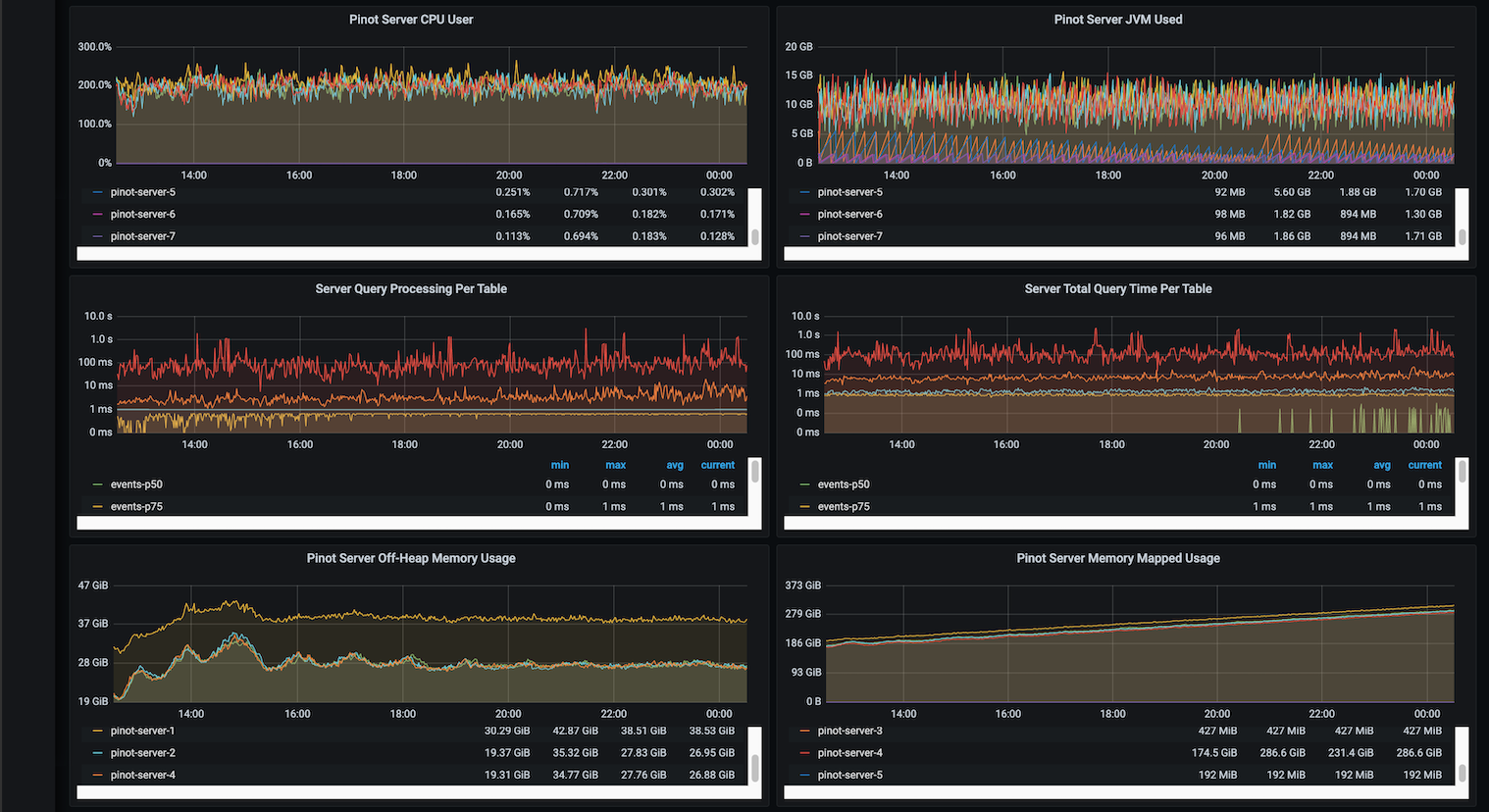
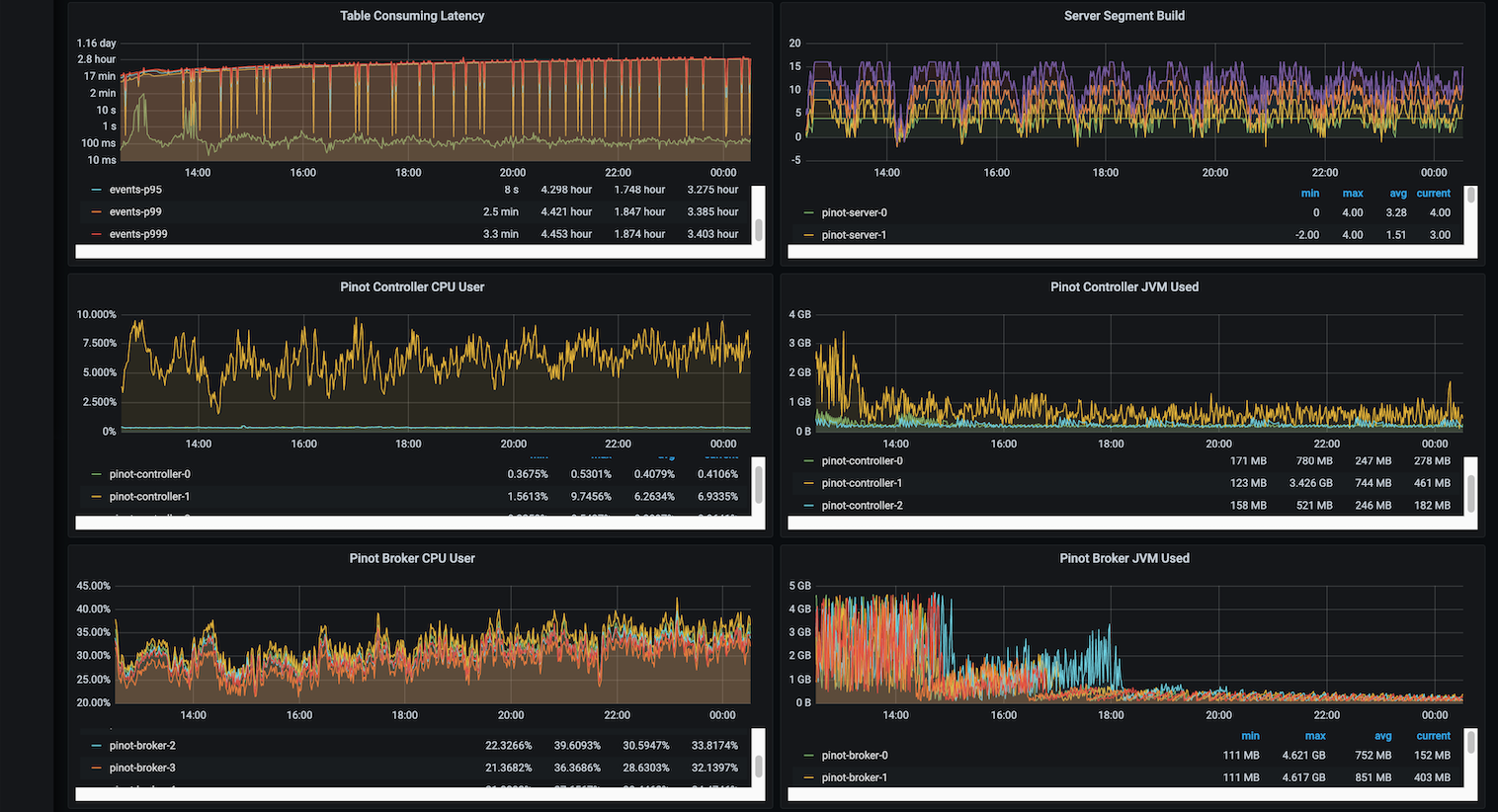
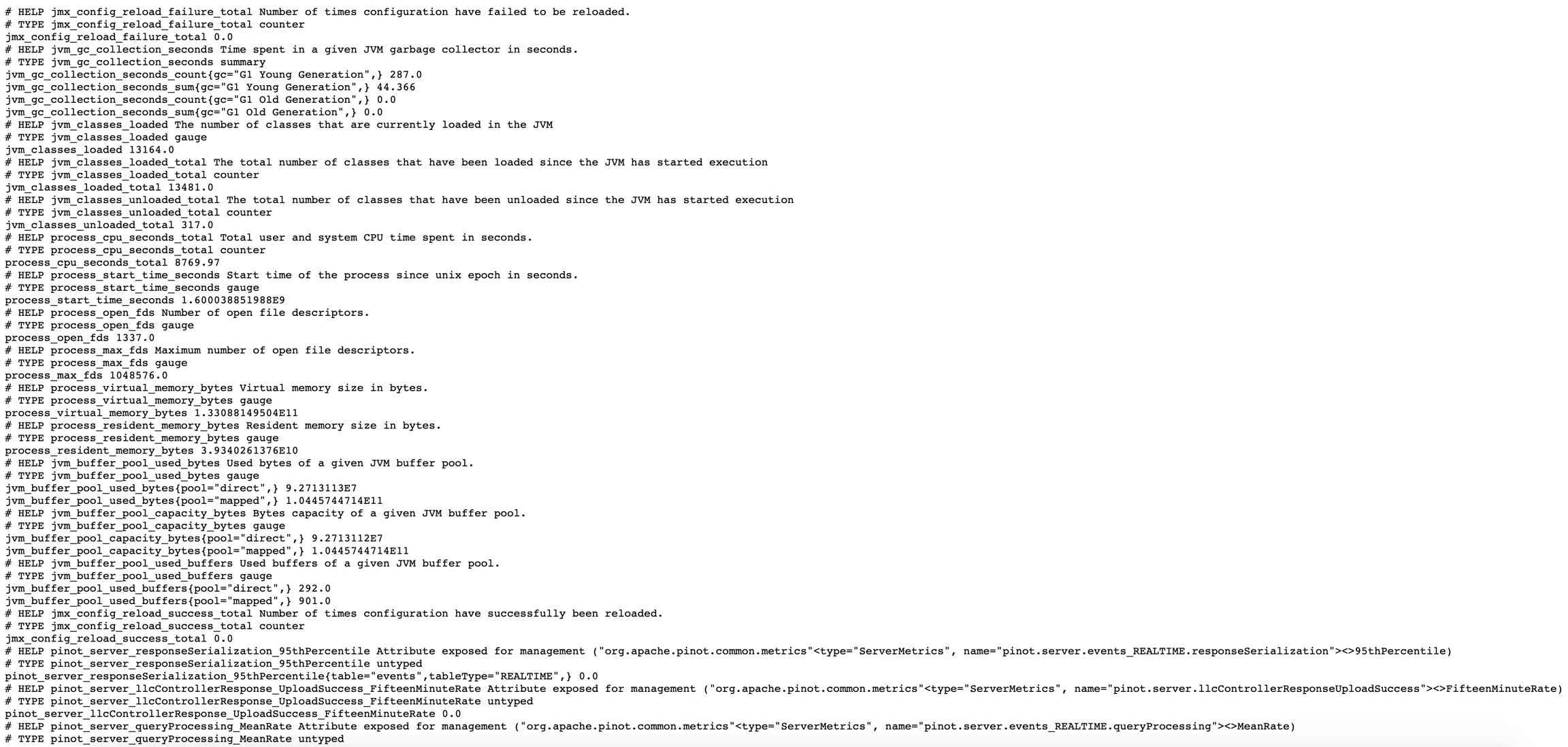
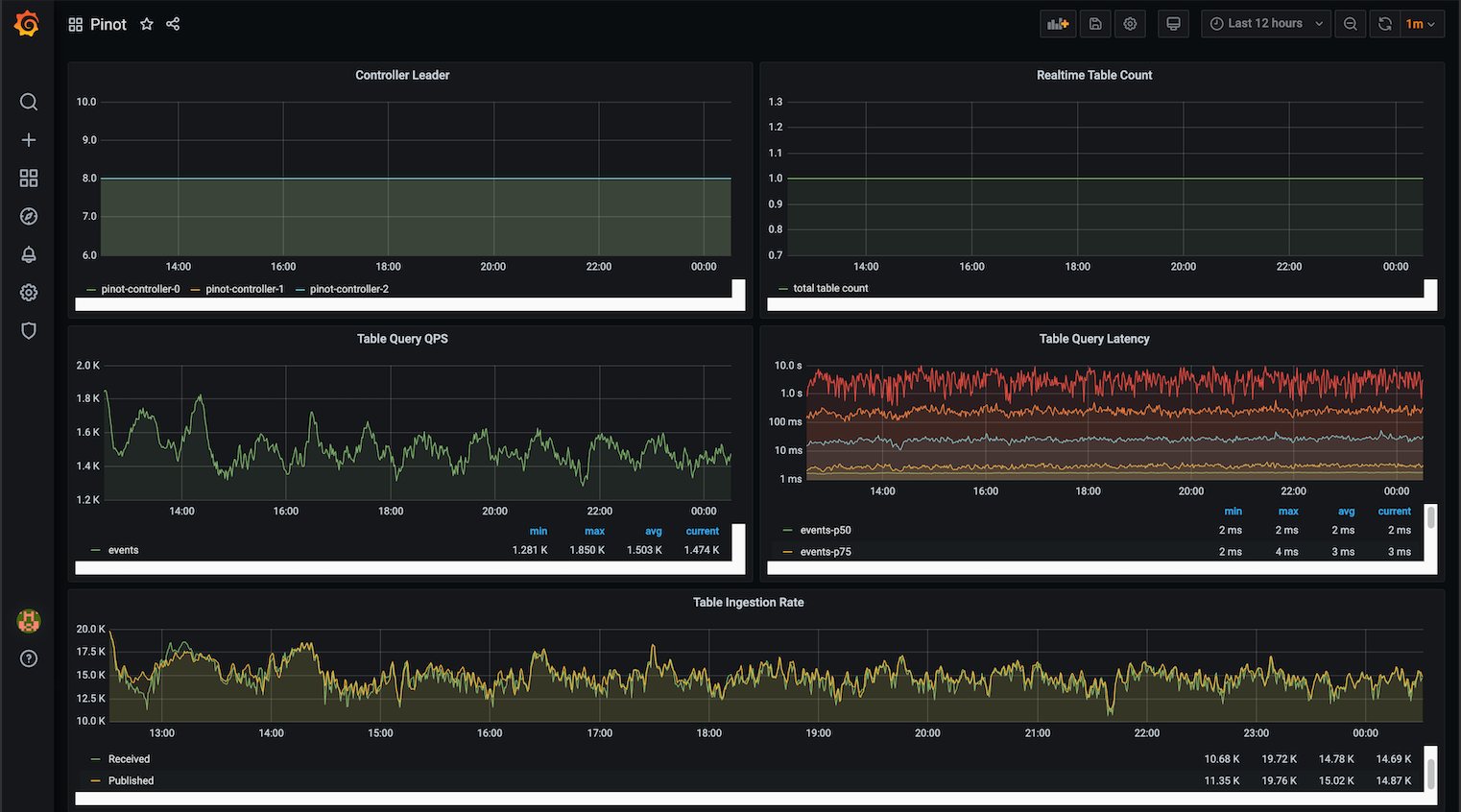
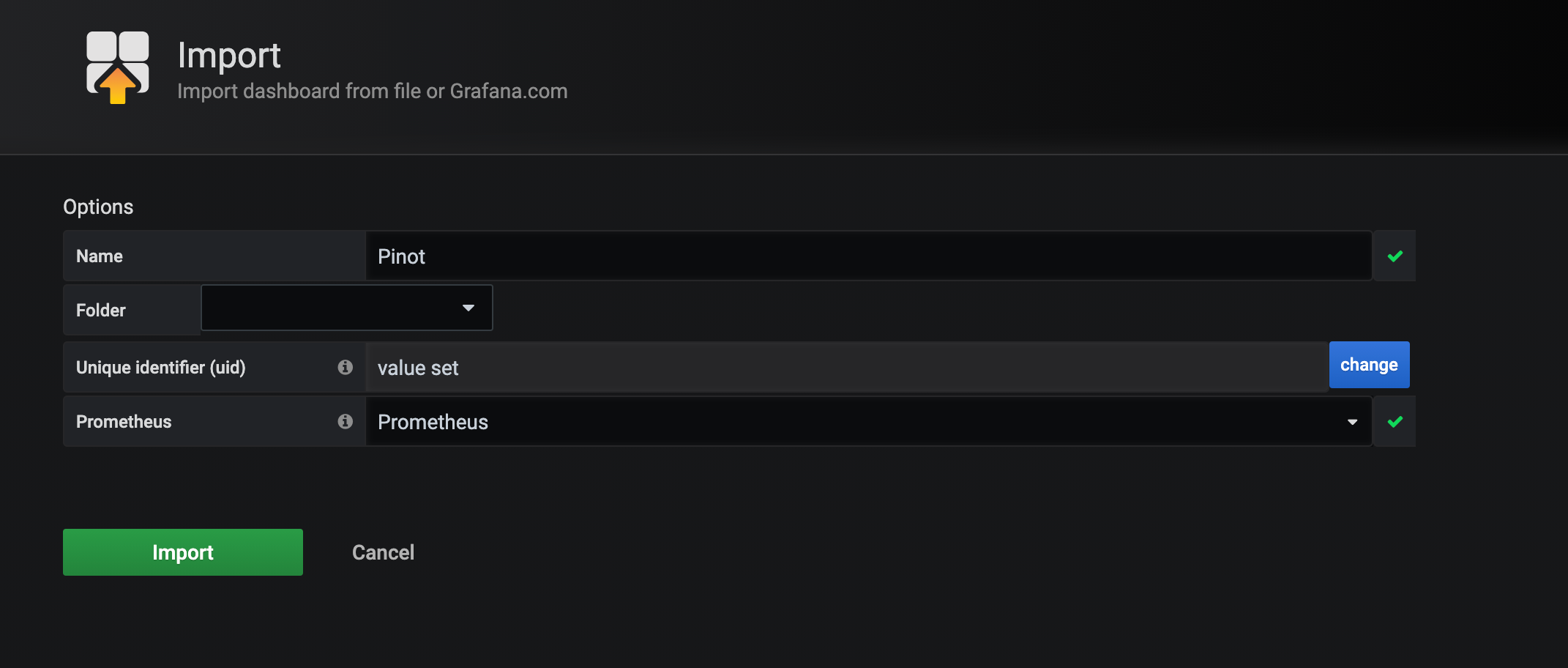
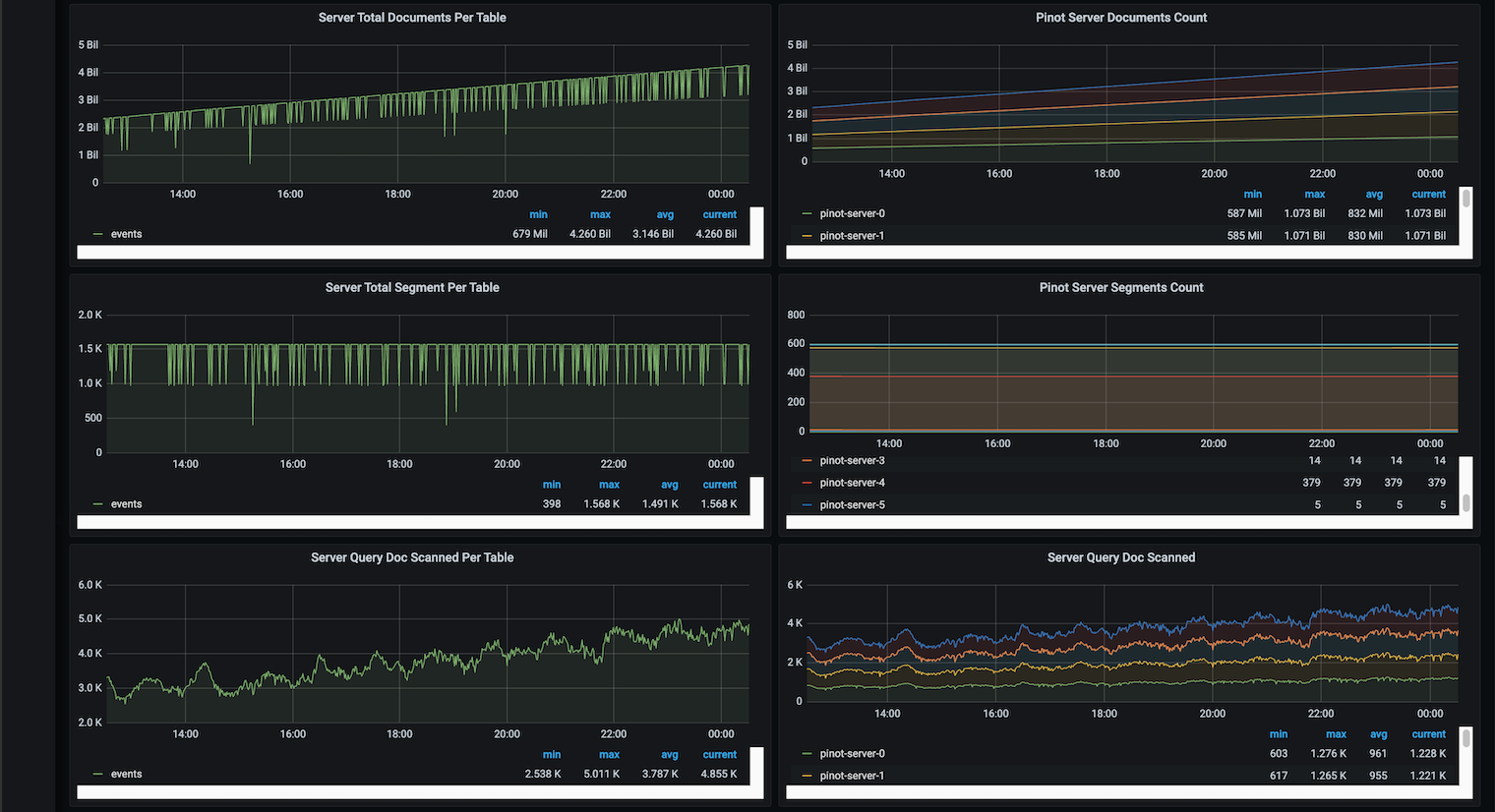
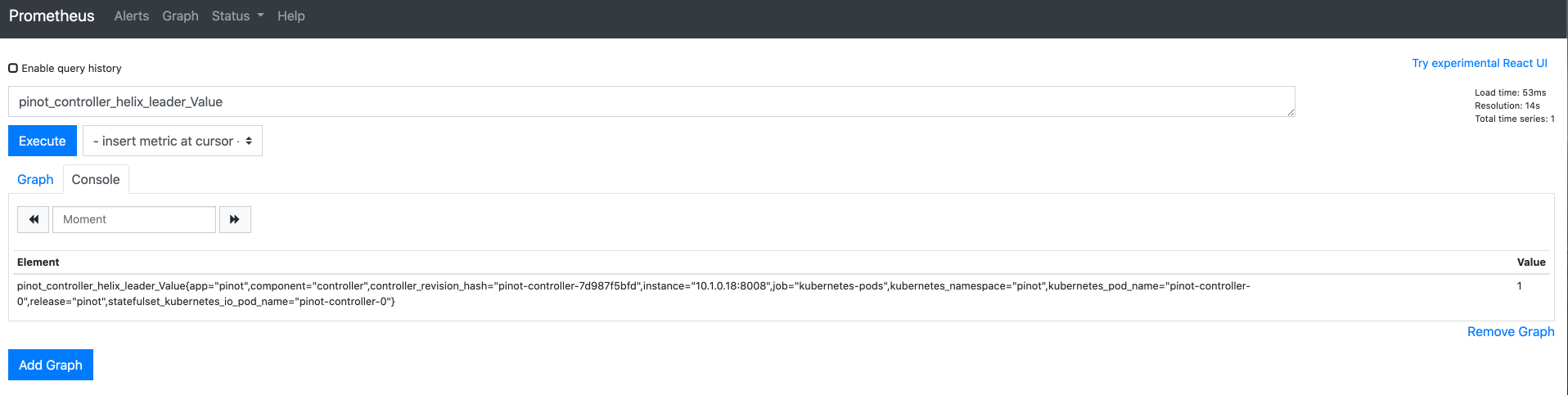
Monitor Pinot using Prometheus and Grafana
Here we will introduce how to monitor Pinot with Prometheus and Grafana in Kubernetes environment.
There is a docker build script which will build a given Git repo/branch and tag the image.
Usage:
This script will check out Pinot Repo [Pinot Git URL] on branch [Git Branch] and build the docker image for that.
The docker image is tagged as [Docker Tag].
Docker Tag: Name and tag your docker image. Default is pinot:latest.
Git Branch: The Pinot branch to build. Default is master.
Pinot Git URL: The Pinot Git Repo to build, users can set it to their own fork. Note that the URL is https:// based, not git://. Default is the Apache Repo: https://github.com/apache/pinot.git.
Kafka Version: The Kafka Version to build pinot with. Default is 2.0
Java Version: The Java Build and Runtime image version. Default is 11
JDK Version: The JDK parameter to build pinot, set as part of maven build option: -Djdk.version=${JDK_VERSION}. Default is 11
OpenJDK Image: Base image to use for Pinot build and runtime. Default is openjdk.
Example of building and tagging a snapshot on your own fork:
Example of building a release version:
Build image with arm64 base image
For users on Mac M1 chips, they need to build the images with arm64 base image, e.g. arm64v8/openjdk
Example of building an arm64 image:
or just run the docker build script directly
Note that if you are not on arm64 machine, you can still build the image by turning on the experimental feature of docker, and add --platform linux/arm64 into the docker build ... script, e.g.
How to publish a docker image
Script docker-push.sh publishes a given docker image to your docker registry.
In order to push to your own repo, the image needs to be explicitly tagged with the repo name.
This docker build project is specialized for Pinot.
How to build
Usage:
This script will check out Presto Repo [Presto Git URL] on branch [Git Branch] and build the docker image for that.
The docker image is tagged as [Docker Tag].
Docker Tag: Name and tag your docker image. Default is pinot-presto:latest.
Git Branch: The Presto branch to build. Default is master.
Presto Git URL: The Presto Git Repo to build, users can set it to their own fork. Note that the URL is https:// based, not git://. Default is the Apache Repo: https://github.com/prestodb/presto.git.
How to push
Configuration
Follow the instructions provided by Presto for writing your own configuration files under etc directory.
Volumes
The image defines two data volumes: one for mounting configuration into the container, and one for data.
The configuration volume is located alternatively at /home/presto/etc, which contains all the configuration and plugins.
This docker build project is based on Project docker-superset and specialized for Pinot.
How to build
Modify file Makefile to change image and superset_version accordingly.
Below command will build docker image and tag it as superset_version and latest.
You can also build directly with docker build command by setting arguments:
How to push
Configuration
Follow the instructions provided by Apache Superset for writing your own superset_config.py.
Place this file in a local directory and mount this directory to /etc/superset inside the container. This location is included in the image's PYTHONPATH. Mounting this file to a different location is possible, but it will need to be in the PYTHONPATH.
Volumes
The image defines two data volumes: one for mounting configuration into the container, and one for data (logs, SQLite DBs, &c).
The configuration volume is located alternatively at /etc/superset or /home/superset; either is acceptable. Both of these directories are included in the PYTHONPATH of the image. Mount any configuration (specifically the superset_config.py file) here to have it read by the app on startup.
The data volume is located at /var/lib/superset and it is where you would mount your SQLite file (if you are using that as your backend), or a volume to collect any logs that are routed there. This location is used as the value of the SUPERSET_HOME environmental variable.
For demo simplicity, this MSK cluster reuses same VPC created by EKS cluster in the previous step. Otherwise a VPC Peering is required to ensure two VPCs could talk to each other.
Under Encryption section, choose**Both TLS encrypted and plaintext traffic allowed**
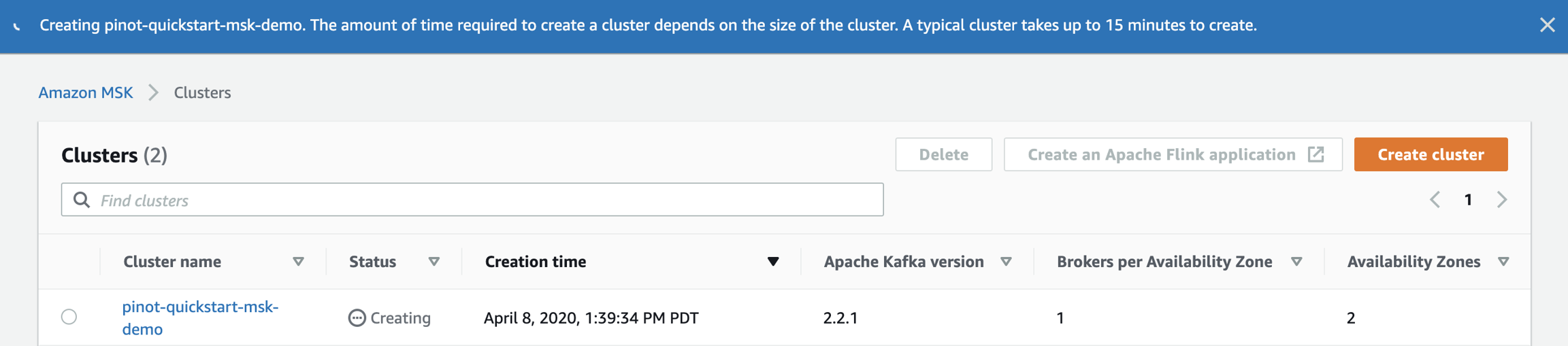
Below is a sample screenshot to create an Amazon MSK cluster.
After click on Create button, you can take a coffee break and come back.
Amazon MSK Clusters View
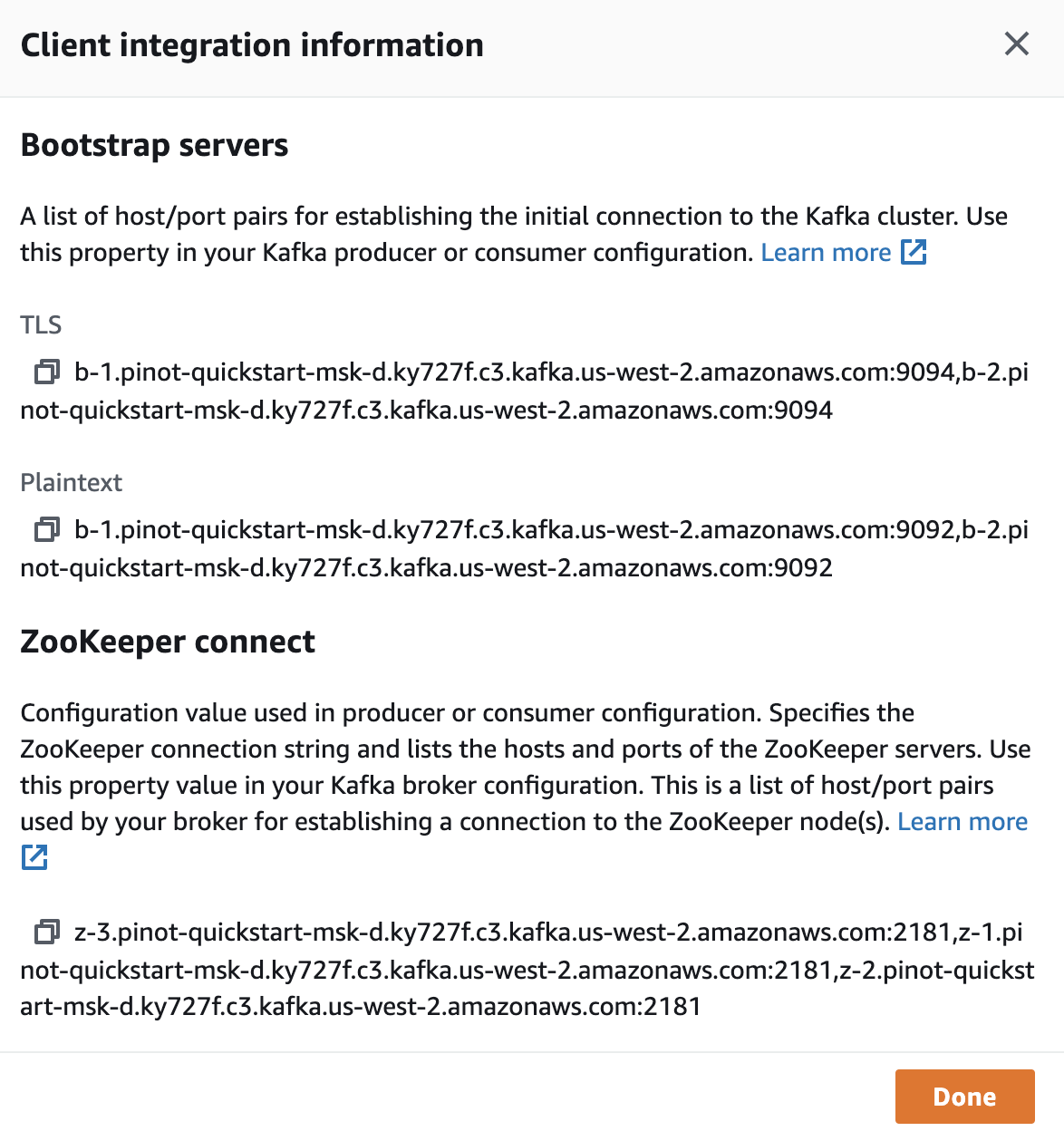
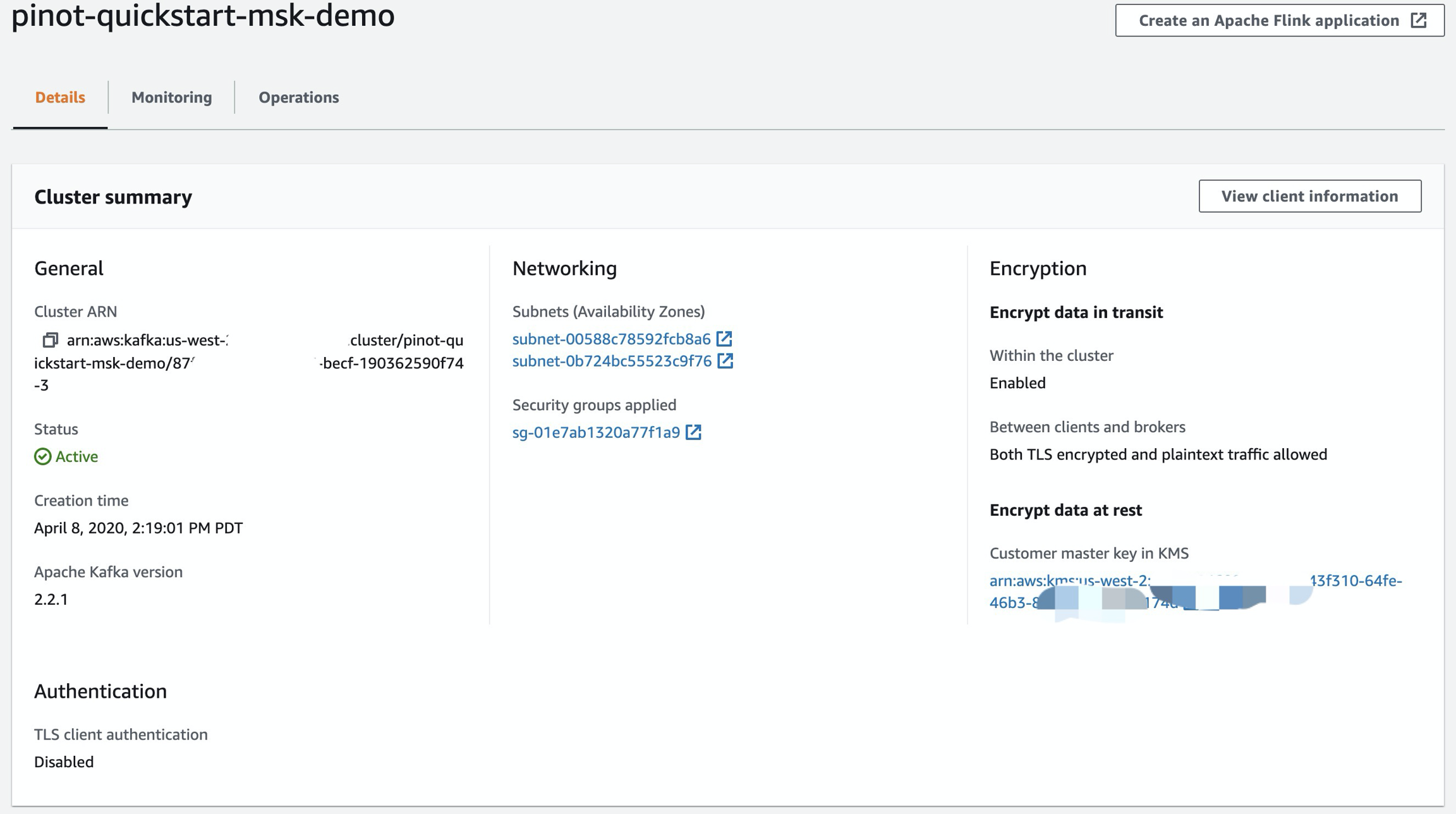
Once the cluster is created, you can view it and click View client information to see the Zookeeper and Kafka Broker list.
MSK Cluster View
Sample Client Information
Connect to MSK
Config SecurityGroup
Until now, the MSK cluster is still not accessible, you can follow this Wiki to create an EC2 instance to connect to it for topic creation, run console producer and consumer.
In order to connect MSK to EKS, we need to allow the traffic could go through each other.
This is configured through Amazon VPC Page.
Record the Amazon MSK SecurityGroup from the Cluster page, in the above demo, it's sg-01e7ab1320a77f1a9.
Open Amazon VPC Page, click on SecurityGroups on left bar. Find the EKS Security group: eksctl-${PINOT_EKS_CLUSTER}-cluster/ClusterSharedNodeSecurityGroup.
Amazon EKS ClusterSharedNodeSecurityGroup
Ensure you are picking ClusterShardNodeSecurityGroup
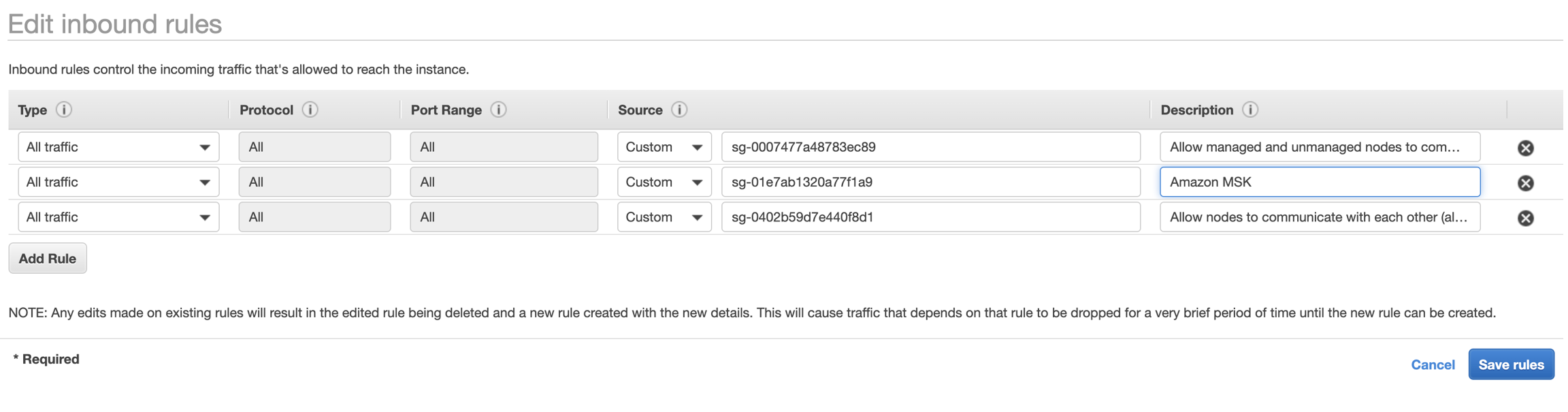
In SecurityGroup, click on MSK SecurityGroup (sg-01e7ab1320a77f1a9), then Click on Edit Rules , then add above ClusterSharedNodeSecurityGroup (sg-0402b59d7e440f8d1) to it.
Add SecurityGroup to Amazon MSK
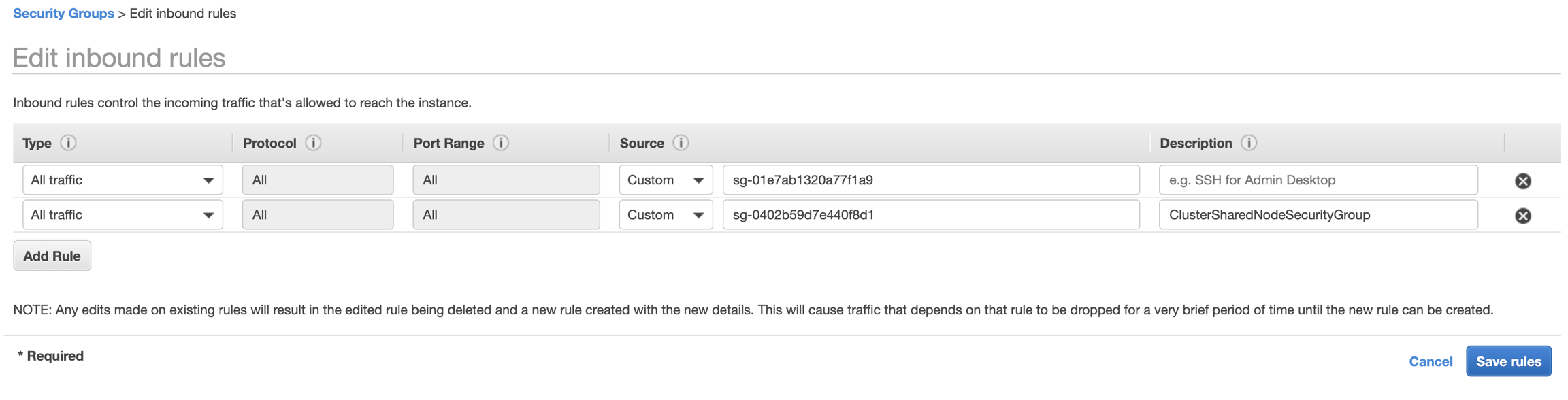
Click EKS Security Group ClusterSharedNodeSecurityGroup (sg-0402b59d7e440f8d1), add In bound Rule for MSK Security Group (sg-01e7ab1320a77f1a9).
Add SecurityGroup to Amazon EKS
Now, EKS cluster should be able to talk to Amazon MSK.
Create Kafka topic
To run below commands, ensure you set two environment variable with ZOOKEEPER_CONNECT_STRING and BROKER_LIST_STRING (Use plaintext) from Amazon MSK client information, and replace the Variables accordingly.
E.g.
You can log into one EKS node or container and run below command to create a topic.
E.g. Enter into Pinot controller container:
Then install wget then download Kafka binary.
Create a Kafka topic:
Topic creation succeeds with below message:
Write sample data into Kafka
Once topic is created, we can start a simple application to produce to it.
${BROKER_LIST_STRING} -> MSK Plaintext Broker String in the deployment
${GITHUB_PERSONAL_ACCESS_TOKEN} -> A personal Github Personal Access Token generated from , grant all read permissions to it. Here is the to generate Github Events.
And apply the YAML file by.
Once the pod is up, you can verify by running a console consumer to read from it.
Try to run from the Pinot Controller container entered in above step.
Create a Pinot table
This step is relatively easy.
Since we already put table creation request into the ConfigMap, we can just enter into pinot-github-events-data-into-msk-kafka pod to execute the command.
Check if the pod is running:
Sample output:
Enter into the pod
Create Table
Sample output:
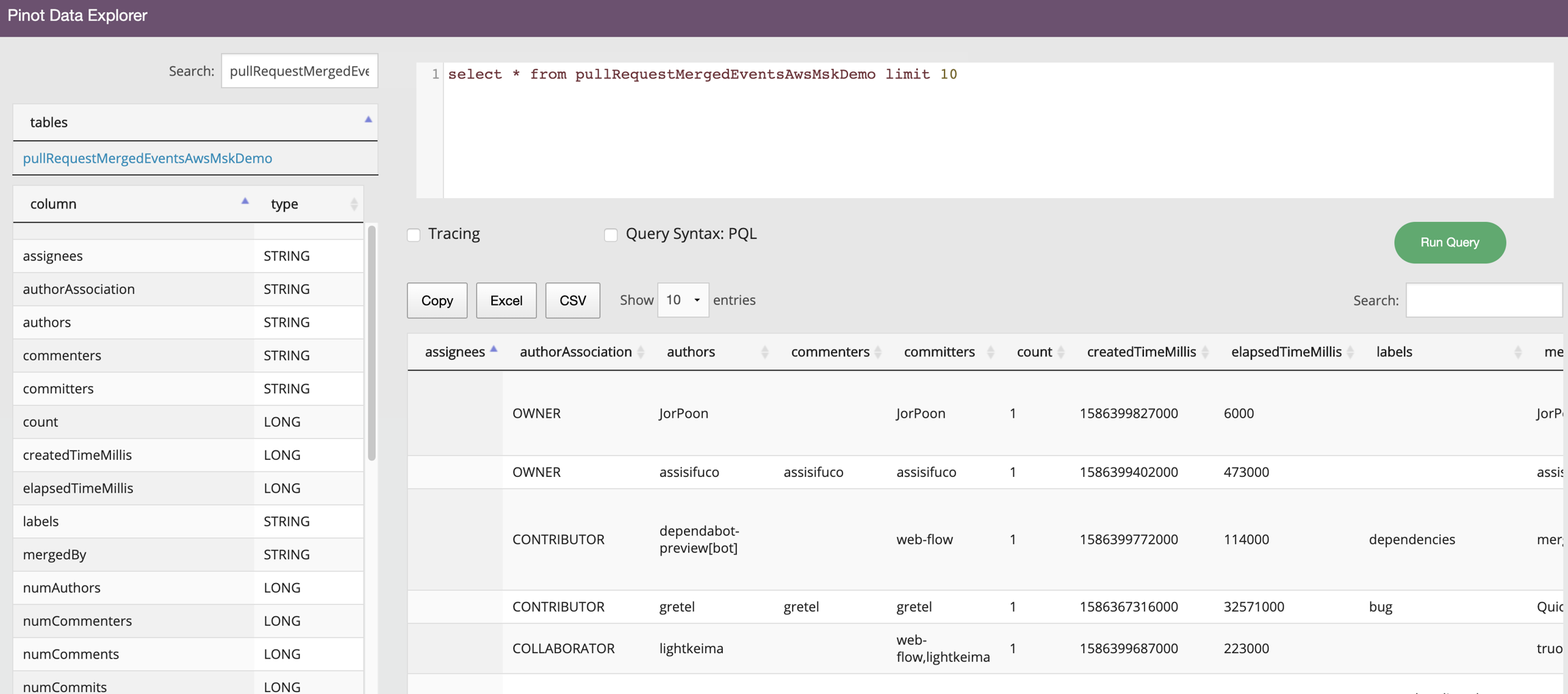
Then you can open Pinot Query Console to browse the data
Working installation of Zookeeper that Pinot can use. We recommend setting aside a path within zookpeer and including that path in pinot.controller.zkStr. Pinot will create its own cluster under this path (cluster name decided by pinot.controller.helixClusterName)
Shared storage mounted on controllers (if you plan to have multiple controllers for the same cluster). Alternatively, an implementation of PinotFS that the Pinot hosts have access to.
HTTP load balancers for spraying queries across brokers (or other mechanism to balance queries)
HTTP load balancers for spraying controller requests (e.g. segment push, or other controller APIs) or other mechanisms for distribution of these requests.
Deploying Pinot
In general, when deploying Pinot services, it is best to adhere to a specific ordering in which the various components should be deployed. This deployment order is recommended in case of the scenario that there might be protocol or other significant differences, the deployments go out in a predictable order in which failure due to these changes can be avoided.
The ordering is as follows:
pinot-controller
pinot-broker
pinot-server
pinot-minion
Managing Pinot
Pinot provides a web-based management console and a command-line utility (pinot-admin.sh) in order to help provision and manage pinot clusters.
Pinot Management Console
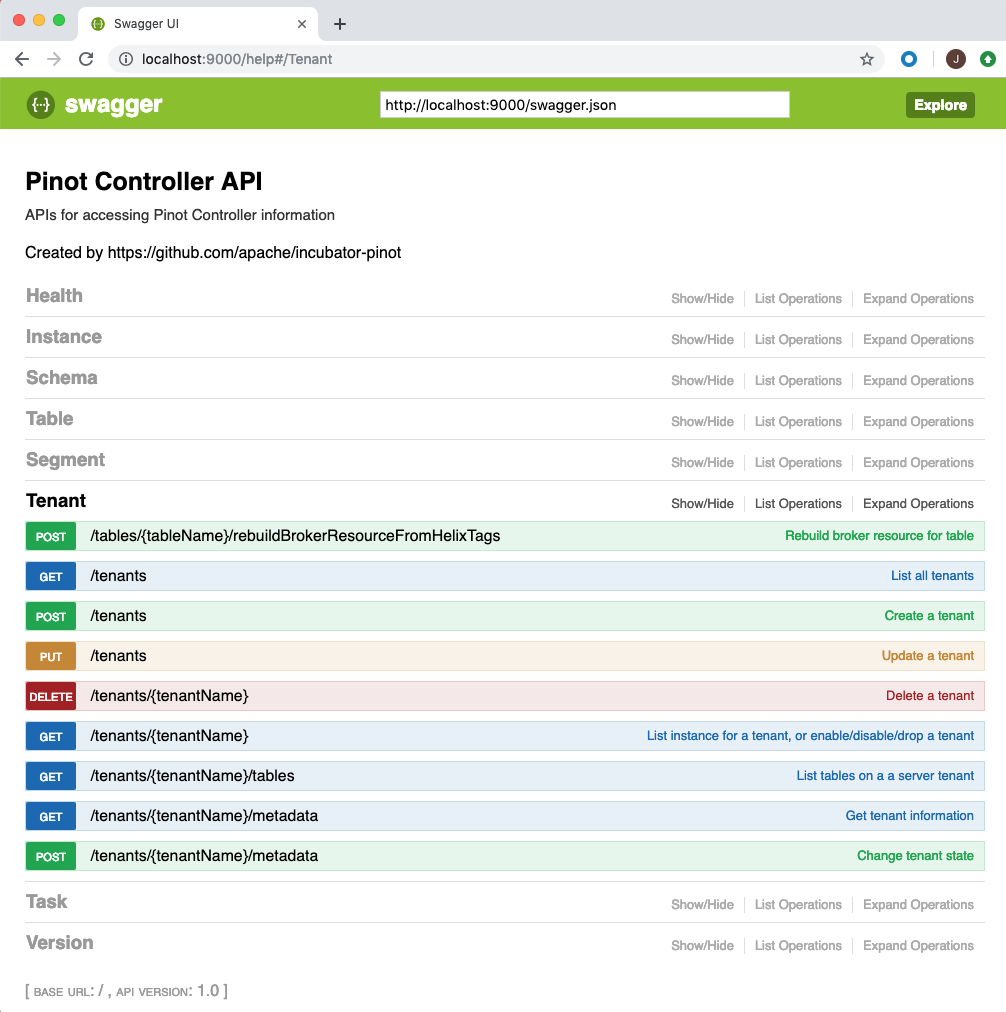
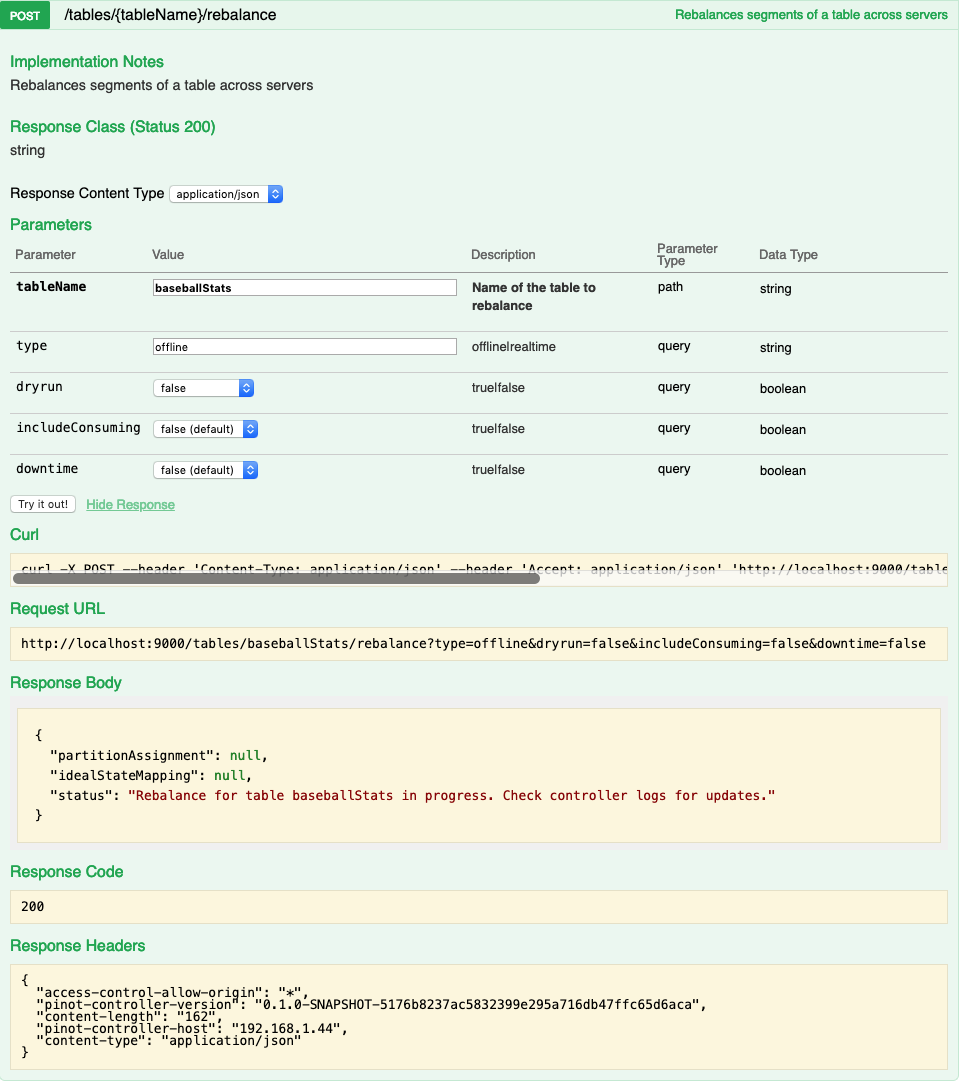
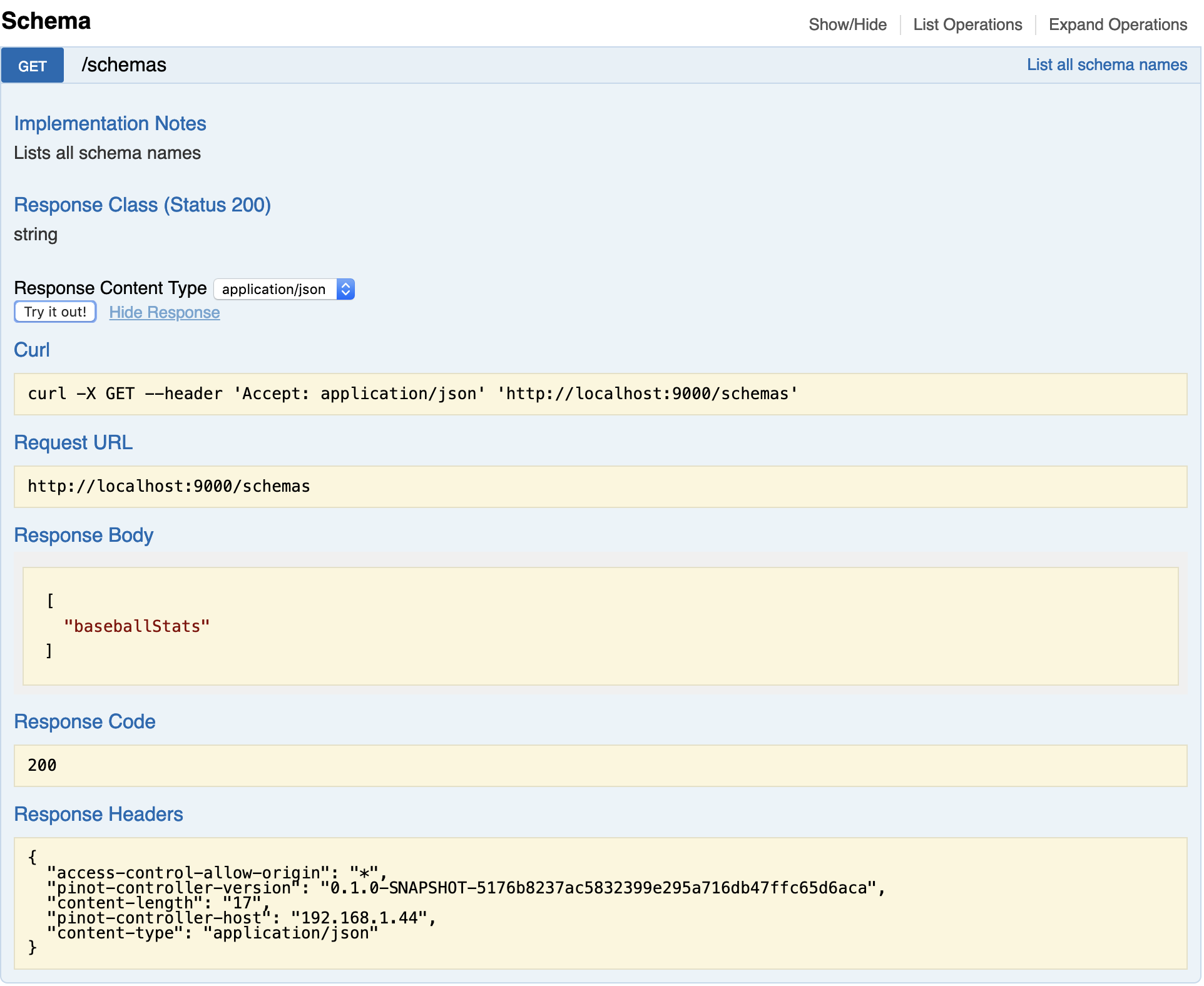
The web based management console allows operations on tables, tenants, segments and schemas. You can access the console via http://controller-host:port/help. The console also allows you to enter queries for interactive debugging. Here are some screen-shots from the console.
Listing all the schemas in the Pinot cluster:
Rebalancing segments of a table:
Command line utility (pinot-admin.sh)
The command line utility (pinot-admin.sh) can be generated by running mvn install package -DskipTests -Pbin-dist in the directory in which you checked out Pinot.
Here is an example of invoking the command to create a pinot segment:
Here is an example of executing a query on a Pinot table:
Monitoring Pinot
Pinot exposes several metrics to monitor the service and ensure that pinot users are not experiencing issues. In this section we discuss some of the key metrics that are useful to monitor. A full list of metrics is available in the Metrics section.
Number of missing segments that the broker queried for (expected to be on the server) but the server didn’t have. This can be due to retention or stale routing table.
Total time to take from receiving to finishing executing the query.
Query Execution Exceptions -
The number of exception which might have occurred during query execution.
Real-time Consumption Status -
This gives a binary value based on whether low-level consumption is healthy (1) or unhealthy (0). It’s important to ensure at least a single replica of each partition is consuming.
Real-time Highest Offset Consumed -
The highest offset which has been consumed so far.
Queries with some segments unavailable (no active server hosting them).
Table QPS quota exceeded -
Binary metric which will indicate when the configured QPS quota for a table is exceeded (1) or if there is capacity remaining (0).
Table QPS quota usage percent -
Percentage of the configured QPS quota being utilized.
Pinot Controller
Many of the controller metrics include a table name and thus are dynamically generated in the code. The metrics below point to the classes which generate the corresponding metrics.
To get the real metric name, the easiest route is to spin up a controller instance, create a table with the desired name and look through the generated metrics.
Todo
Give a more detailed explanation of how metrics are generated, how to identify real metrics names and where to find them in the code.
$ ./pinot-distribution/target/apache-pinot-0.8.0-SNAPSHOT-bin/apache-pinot-0.8.0-SNAPSHOT-bin/bin/pinot-admin.sh CreateSegment -dataDir /Users/host1/Desktop/test/ -format CSV -outDir /Users/host1/Desktop/test2/ -tableName baseballStats -segmentName baseballStats_data -overwrite -schemaFile ./pinot-distribution/target/apache-pinot-0.8.0-SNAPSHOT-bin/apache-pinot-0.8.0-SNAPSHOT-bin/sample_data/baseballStats_schema.json
Executing command: CreateSegment -generatorConfigFile null -dataDir /Users/host1/Desktop/test/ -format CSV -outDir /Users/host1/Desktop/test2/ -overwrite true -tableName baseballStats -segmentName baseballStats_data -timeColumnName null -schemaFile ./pinot-distribution/target/apache-pinot-0.8.0-SNAPSHOT-bin/apache-pinot-0.8.0-SNAPSHOT-bin/sample_data/baseballStats_schema.json -readerConfigFile null -enableStarTreeIndex false -starTreeIndexSpecFile null -hllSize 9 -hllColumns null -hllSuffix _hll -numThreads 1
Accepted files: [/Users/host1/Desktop/test/baseballStats_data.csv]
Finished building StatsCollector!
Collected stats for 97889 documents
Created dictionary for INT column: homeRuns with cardinality: 67, range: 0 to 73
Created dictionary for INT column: playerStint with cardinality: 5, range: 1 to 5
Created dictionary for INT column: groundedIntoDoublePlays with cardinality: 35, range: 0 to 36
Created dictionary for INT column: numberOfGames with cardinality: 165, range: 1 to 165
Created dictionary for INT column: AtBatting with cardinality: 699, range: 0 to 716
Created dictionary for INT column: stolenBases with cardinality: 114, range: 0 to 138
Created dictionary for INT column: tripples with cardinality: 32, range: 0 to 36
Created dictionary for INT column: hitsByPitch with cardinality: 41, range: 0 to 51
Created dictionary for STRING column: teamID with cardinality: 149, max length in bytes: 3, range: ALT to WSU
Created dictionary for INT column: numberOfGamesAsBatter with cardinality: 166, range: 0 to 165
Created dictionary for INT column: strikeouts with cardinality: 199, range: 0 to 223
Created dictionary for INT column: sacrificeFlies with cardinality: 20, range: 0 to 19
Created dictionary for INT column: caughtStealing with cardinality: 36, range: 0 to 42
Created dictionary for INT column: baseOnBalls with cardinality: 154, range: 0 to 232
Created dictionary for STRING column: playerName with cardinality: 11976, max length in bytes: 43, range: to Zoilo Casanova
Created dictionary for INT column: doules with cardinality: 64, range: 0 to 67
Created dictionary for STRING column: league with cardinality: 7, max length in bytes: 2, range: AA to UA
Created dictionary for INT column: yearID with cardinality: 143, range: 1871 to 2013
Created dictionary for INT column: hits with cardinality: 250, range: 0 to 262
Created dictionary for INT column: runsBattedIn with cardinality: 175, range: 0 to 191
Created dictionary for INT column: G_old with cardinality: 166, range: 0 to 165
Created dictionary for INT column: sacrificeHits with cardinality: 54, range: 0 to 67
Created dictionary for INT column: intentionalWalks with cardinality: 45, range: 0 to 120
Created dictionary for INT column: runs with cardinality: 167, range: 0 to 192
Created dictionary for STRING column: playerID with cardinality: 18107, max length in bytes: 9, range: aardsda01 to zwilldu01
Start building IndexCreator!
Finished records indexing in IndexCreator!
Finished segment seal!
Converting segment: /Users/host1/Desktop/test2/baseballStats_data_0 to v3 format
v3 segment location for segment: baseballStats_data_0 is /Users/host1/Desktop/test2/baseballStats_data_0/v3
Deleting files in v1 segment directory: /Users/host1/Desktop/test2/baseballStats_data_0
Driver, record read time : 369
Driver, stats collector time : 0
Driver, indexing time : 373
Set up TLS-secured connections inside and outside your cluster
Pinot versions from 0.7.0+ support client-cluster and intra-cluster TLS. TLS-support comes in both 1-way and 2-way flavors. This guide walks through the relevant configuration options.
In order to support incremental upgrades of unsecured pinot clusters towards TLS, we introduce multi-ingress support via listeners. Each listener accepts connections for a specific protocol on a specific port. For example, pinot-broker may be configured to accept both, http on port 8099 and https on port 8443 at the same time.
Existing configuration properties such as controller.port are still parsed and automatically translated to a http listener configuration to enable full backwards-compatibility. TLS-secured ingress must be configured through the new listener specifications.
TLS upgrade
If you're bootstrapping a cluster from scratch, you can directly configure TLS-secured connections and you can forgo legacy http ingress. If you're upgrading an existing (production) cluster, you'll be able to perform the upgrade without downtime if your deployment is configured for high-availability.
On a high level, a zero-downtime upgrade includes the following 3 phases:
adding a secondary TLS-secured ingress to pinot controllers, brokers, and servers
switching client and internode egress to prefer TLS-secured connections
disabling unsecured ingress
This requires a rolling restart of (replicated) service containers after each re-configuration phase. The sample listener specifications below will guide you through this process.
Generating certificates
Apache Pinot leverages the JVM's native TLS infrastructure with all its benefits and limitations. Certificates should be generated to include the host IP, hostname, and fully-qualified domain names (if accessed or identified this way).
We support both, the JVM's default key/truststore, as well as configuration options to load certificates from secondary locations. Note, that some connector plugins require the default truststore to contain any trusted certs since they do not parse pinot's configuration properties for external truststores.
Most JVM's default certificate store can be configured with command-line arguments:
This section contains a number of examples for common situations. The complete configuration reference can be found is each component's configuration reference.
If you're bootstrapping a new cluster, scroll down towards the end. We order this section for purposes of migrating an existing unsecured cluster to TLS-only.
Legacy HTTP config (unsecured)
This is a minimal example of network configuration options prior to 0.7.0. This specification is still supported for backwards-compatibility and translated internally to a listener specification.
HTTP with listener specification (unsecured)
This HTTP listener specification is the equivalent of manually translating the legacy configuration above to a listener specification.
HTTP/HTTPS multi-ingress (unsecured egress)
This is a common scenario for development clusters and an intermediate phase during a zero-downtime migration of an unsecured cluster towards TLS. This configuration optionally accepts secure ingress on alternate ports, but still defaults to unsecured egress for all operations.
HTTP/HTTPS multi-ingress (secure egress)
After all pinot components have been configured and restarted to offer secure ingress, we can modify egress to default to secure connections internode. Clients, such as pinot-admin.sh, support an optional flag -controllerProtocol https to enable secure access. Ingestion jobs similarly support an optional tlsSpec key to configure key/trststores. Note, that any console clients must have access to appropriate certificates via the JVM's default key/truststore.
TLS only
This is the default for a newly bootstrapped secure pinot cluster. It is also the final stage for any migration of an existing cluster. With this configuration applied, pinot's components will reject any unsecured connection attempt.
2-way TLS
Apache Pinot also supports 2-way TLS for environments with high security requirements. This can be enabled per component with the optional client.auth.enabled flag. Bear in mind that any client (or server) interacting with a component expecting client auth must have access to both, a keystore and a truststore. This setting does NOT have apply to unsecured http or netty connections.