arrow-left

All pages
gitbookPowered by GitBook
1 of 1

Loading...

Creating Pinot Segments

hashtag
Creating Pinot segments

Pinot segments can be created offline on Hadoop, or via command line from data files. Controller REST endpoint can then be used to add the segment to the table to which the segment belongs. Pinot segments can also be created by ingesting data from real-time resources (such as Kafka).

hashtag
Creating segments using hadoop

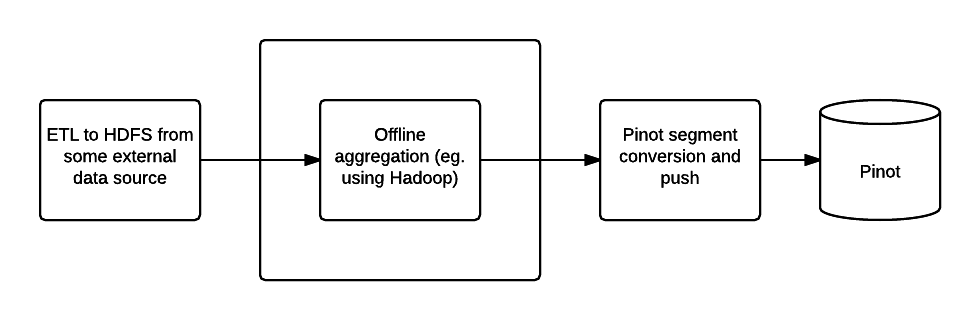
Offline Pinot workflow

To create Pinot segments on Hadoop, a workflow can be created to complete the following steps:

  1. Pre-aggregate, clean up and prepare the data, writing it as Avro format files in a single HDFS directory

  2. Create segments

  3. Upload segments to the Pinot cluster

Step one can be done using your favorite tool (such as Pig, Hive or Spark), Pinot provides two MapReduce jobs to do step two and three.

hashtag
Configuring the job

Create a job properties configuration file, such as one below:

hashtag
Executing the job

The Pinot Hadoop module contains a job that you can incorporate into your workflow to generate Pinot segments.

You can then use the SegmentTarPush job to push segments via the controller REST API.

hashtag
Creating Pinot segments outside of Hadoop

Here is how you can create Pinot segments from standard formats like CSV/JSON/AVRO.

  1. Follow the steps described in the section on to build pinot. Locate pinot-admin.sh in pinot-tools/target/pinot-tools=pkg/bin/pinot-admin.sh.

  2. Create a top level directory containing all the CSV/JSON/AVRO files that need to be converted into segments.

Run the pinot-admin command to generate the segments. The command can be invoked as follows. Options within “[ ]” are optional. For -format, the default value is AVRO.

To configure various parameters for CSV a config file in JSON format can be provided. This file is optional, as are each of its parameters. When not provided, default values used for these parameters are described below:

  1. fileFormat: Specify one of the following. Default is EXCEL.

    1. EXCEL

    2. MYSQL

Below is a sample config file.

Sample Schema:

hashtag
Pushing offline segments to Pinot

You can use curl to push a segment to pinot:

Alternatively you can use the pinot-admin.sh utility to upload one or more segments:

The command uploads all the segments found in segmentDirectoryPath. The segments could be either tar-compressed (in which case it is a file under segmentDirectoryPath) or uncompressed (in which case it is a directory under segmentDirectoryPath).
The file name extensions are expected to be the same as the format name (i.e .csv, .json or .avro), and are case insensitive. Note that the converter expects the .csv extension even if the data is delimited using tabs or spaces instead.
  • Prepare a schema file describing the schema of the input data. The schema needs to be in JSON format. See example later in this section.

  • Specifically for CSV format, an optional csv config file can be provided (also in JSON format). This is used to configure parameters like the delimiter/header for the CSV file etc. A detailed description of this follows below.

  • RFC4180
  • TDF

  • header: If the input CSV file does not contain a header, it can be specified using this field. Note, if this is specified, then the input file is expected to not contain the header row, or else it will result in parse error. The columns in the header must be delimited by the same delimiter character as the rest of the CSV file.

  • delimiter: Use this to specify a delimiter character. The default value is “,”.

  • multiValueDelimiter: Use this to specify a delimiter character for each value in multi-valued columns. The default value is “;”.

  • Compiling the code
    # === Index segment creation job config ===
    
    # path.to.input: Input directory containing Avro files
    path.to.input=/user/pinot/input/data
    
    # path.to.output: Output directory containing Pinot segments
    path.to.output=/user/pinot/output
    
    # path.to.schema: Schema file for the table, stored locally
    path.to.schema=flights-schema.json
    
    # segment.table.name: Name of the table for which to generate segments
    segment.table.name=flights
    
    # === Segment tar push job config ===
    
    # push.to.hosts: Comma separated list of controllers host names to which to push
    push.to.hosts=controller_host_0,controller_host_1
    
    # push.to.port: The port on which the controller runs
    push.to.port=8888
    mvn clean install -DskipTests -Pbuild-shaded-jar
    hadoop jar pinot-hadoop-<version>-SNAPSHOT-shaded.jar SegmentCreation job.properties
    hadoop jar pinot-hadoop-<version>-SNAPSHOT-shaded.jar SegmentTarPush job.properties
    bin/pinot-admin.sh CreateSegment -dataDir <input_data_dir> [-format [CSV/JSON/AVRO]] [-readerConfigFile <csv_config_file>] [-generatorConfigFile <generator_config_file>] -segmentName <segment_name> -schemaFile <input_schema_file> -tableName <table_name> -outDir <output_data_dir> [-overwrite]
    {
      "fileFormat": "EXCEL",
      "header": "col1,col2,col3,col4",
      "delimiter": "\t",
      "multiValueDelimiter": ","
    }
    {
      "schemaName": "flights",
      "dimensionFieldSpecs": [
        {
          "name": "flightNumber",
          "dataType": "LONG"
        },
        {
          "name": "tags",
          "dataType": "STRING",
          "singleValueField": false
        }
      ],
      "metricFieldSpecs": [
        {
          "name": "price",
          "dataType": "DOUBLE"
        }
      ],
      "timeFieldSpec": {
        "incomingGranularitySpec": {
          "name": "daysSinceEpoch",
          "dataType": "INT",
          "timeType": "DAYS"
        }
      }
    }
    curl -X POST -F segment=@<segment-tar-file-path> http://controllerHost:controllerPort/segments
    pinot-tools/target/pinot-tools-pkg/bin//pinot-admin.sh UploadSegment -controllerHost <hostname> -controllerPort <port> -segmentDir <segmentDirectoryPath>